Claude can find, read, and edit files stored in SharePoint including adding new entries, updating content, and creating new files. The key is connecting your SharePoint folder to your computer via aOneDrive shortcut, then granting Claude access to that folder using the Filesystem connector in the Claude Desktop app.
The Filesystem connector requires the **Claude Desktop app**. If you only use Claude in the browser, you can dowload the desktop app via <https://claude.com/download>.
Filesystem Connector Capabilities
| Action | Filesystem Connector Capability |
|---|---|
| Read files in your shortcutted SharePoint folders | ✅ |
| Find files by name in shortcutted folders | ✅ |
| Edit or update existing files | ✅ |
| Create new files | ✅ |
| Delete files | ❌ |
| Search across all SharePoint sites (not just shortcutted ones) | ❌ |
| Access Outlook email, calendar, and Teams | ❌ |
| Works in the browser | ❌ |
Step 1: Add Your SharePoint Folder as a Shortcut in OneDrive
- Open your SharePoint site in a web browser and navigate to the folder that has the files you want Claude to work with.
- Click the Add shortcut to My files button in the toolbar at the top of the page.
- You'll see a confirmation message. You can find it in File Explorer (Windows) or Finder (Mac) under your OneDrive - Syracuse University folder. It will have a small shortcut arrow on the icon.

Step 2: Enable the Filesystem Connector in Claude Desktop
- Open the Claude Desktop app. If you haven't installed it yet, download it at https://claude.com/download and sign in with your SU credentials.
- Find Filesystem in the connector list, then install and enable it.
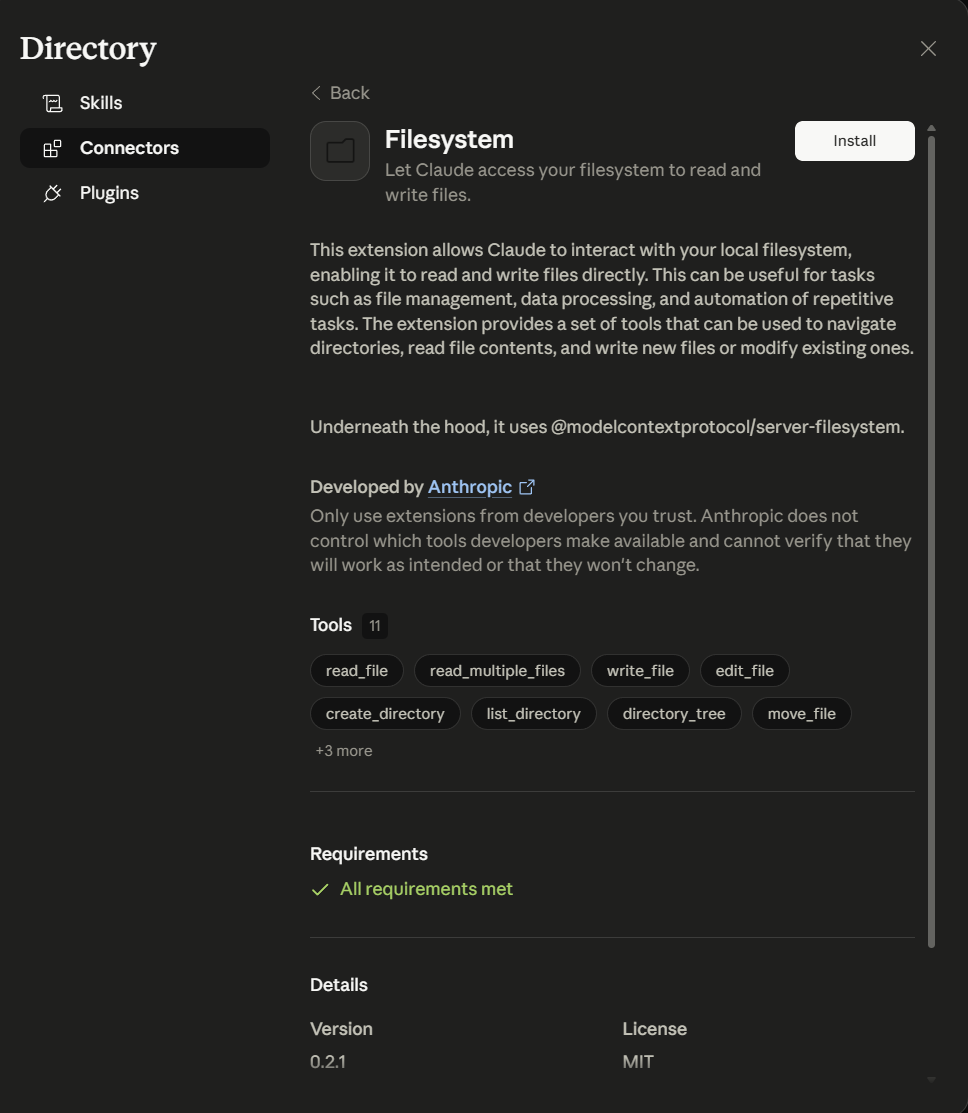
- When configuring, paste theSharePoint shortcut path in the directory path. This is usually something like
C:\Users\YourName\OneDrive - Syracuse Universityon Windows or~/OneDrive - Syracuse Universityon Mac. You can select the whole OneDrive folder or just the specific shortcut folder. You can add multiple paths.
.png)
Give it a try, Claude can now read and edit SharePoint files for you.
Questions?
Reach out to the AI team at aihelp@syr.edu or book a consultation at the AI at Syracuse University Bookings page.